Last updated on March 23, 2026 8:23 am
Taking area measurements?
Aaron Barnett of BangingToolbox suggests: Measuring an area in building and construction is crucial for me in many applications.
If you work with planning and design, building and construction, landscaping, or any job requiring quantifying space, get used to measuring area.
And if you’re working on distant spaces, you may experience trouble repositioning and measuring wide areas with a tape measure.
Thank goodness, we can use a laser measure for long distances and take area measurements in seconds or minutes without risking our safety stretching over unsafe heights.
However, not everyone gets along with a laser measure on the first try. You can do this easily if you have read our guide to measuring distance with a laser measure.
In this guide, we’ll help you get to know a laser measure better and teach you how to use one for measuring and calculating area.

Why is a laser measure perfect for taking area measurements?
The area is the measurement of the space on an enclosed two-dimensional figure.
In general, a 2D square is measured by taking the length and width and multiplying them together. The result is expressed in square meters, square inches, or square millimeters.
However, you do not have to go through the process of calculating the area by yourself.
The laser measure will do it for you so you can focus on more important tasks. This tool displays results in seconds because lasers rely on pulse measurement to find out distance.
Next, a laser measure is highly accurate and can take area measurements within 1/16 inch or less. You can take multiple area measurements and save them for future reference.
The tool should be user-friendly, and you can take measurements without risking positioning yourself in hard-to-reach areas.

What applications are area measurements used for?
If there is any type of measurement applicable to many projects other than building or construction, that would be measuring the area.
Area measurement helps you quantify what you need to fill a two-dimensional space. Aside from that, area measurement helps in planning and designing spaces.
Area measurements also can help when estimating costs for building, landscaping, painting, and agricultural projects.
If your nature of work is anywhere to the above-mentioned roles, you will work closely with the need for frequent area measurements.
And a laser measure is one tool you must always have in your toolbag. Additionally, you’ll need to master area measuring to enforce quality control or to comply with building codes and zoning requirements.
Here are a few scenarios where the area is used as a reference:
- For quantifying the amount of paint, trim, plasterboard, flooring, or wallpaper needed.
- To measure how much fertilizer is needed for a piece of lawn area.
- Determining a property’s value.

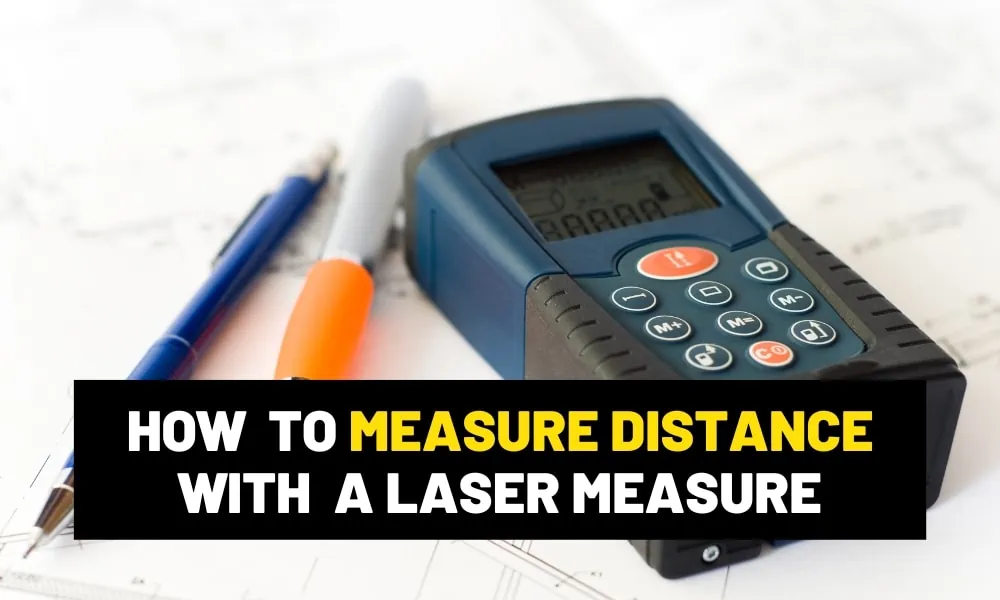
To help you use the tool better, familiarize yourself with the buttons and icons on the screen used for measuring the area.
- Reference point button
- Unit button
- Function button
- Measure button
- Memory button
How to measure area with a laser measure?
Step 1 – Set a reference point.
Locate the reference button and the reference point icon on the screen.
Decide if you want to use the bottom, center, or top of the device as your starting point. Your screen should signify that you are using the correct starting point.
You should see the reference point icon, mostly at the top left side of the screen.
The icon should show the laser measure device figure and a line indicating the starting point of measuring.
To set the reference point, push the reference button until the monitor displays your desired reference point

Step 2 – Set the measurement unit to use.
Some models have a separate unit button. Some models utilize the mode button to select measurement units.
If you’re using the mode button, you may still have to navigate inches, feet, or meters using the plus/ minus or arrow buttons.
Also, this button may allow you to select decimal digits on the screen.
Press this button until you find the unit measurement and decimal units you need.
Step 3 – Set your laser measure to area mode.
Locate the mode button with a cube or square icon printed. Sometimes this button is also called the function button.
The button varies on the model of the laser measure.
Push this button until you find the 2D square icon on the screen blinking, switched, or stopped.
Don’t be confused over the line (distance mode), and cube (volume mode).
When you have switched the icon to the plane square on the screen, it is already set to area mode.
Step 4 – Start measuring the area.
Now that you have set the reference point, area mode, and measurement unit, you can start taking the length and width of the space you are measuring. You will use the measure button in this step.
Sometimes the button is labeled as MEAS or DIST. Again, this label may be different in some models.
But the measure button is usually the power or the red button on the top center of the screen.
The tool will ask you for two measurements (the length and width). Turn the laser tool on and aim at your subject. Press this button until the tool signifies it has captured the measurement. It may vibrate or beep.
Usually, the tool will signify for next measurement by blinking on the next row on the monitor.
Aim your target with the laser and press the measure button. When the tool has captured the distance, you should hear it beep or feel it vibrate.
It will only take seconds to display the result and you will see the measured area at the bottom of the screen.
Step 5 – Save your measurement.
Since the area measurement has been displayed on the screen, it’s time to save the results.
Simply press the memory or storage button.
This button usually has a file, folder, or storage icon printed. Laser measures could save 20 to 50 measurements, depending on the model.

Final words
Now that you know how to measure an area with a laser measure, get your laser measuring tool and know its buttons and functions.
Practice and let the tool work for you. Also, learn the other functions of the tool, like indirect measuring.
You do not have to spend more time calculating, especially if you need to focus on more tasks.