Last updated on March 23, 2026 8:11 am
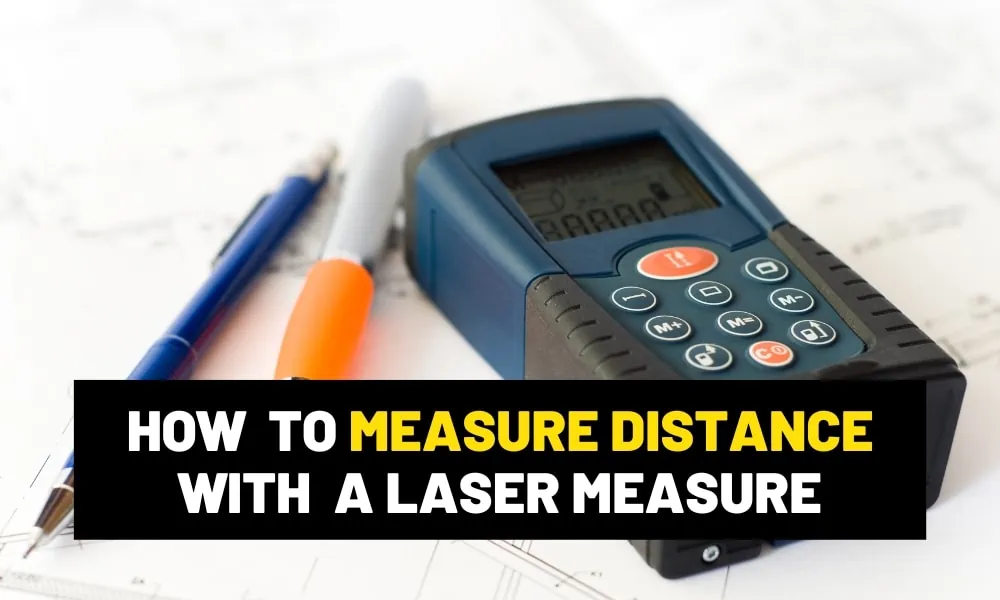
Are you familiar with parts of a laser measure?
Do you know what each button does?
Aaron Barnett of BangingToolbox suggests: A laser measure or laser distance meter only has a few parts, but the buttons can be confusing for some.
Especially for first-timers, as the display could be overwhelming at first if you have something high-end.
We would not be surprised if you misinterpret the measurements in the display if you don’t pay careful attention.
For anyone who will work with a laser measure frequently, I think it is crucial that you also know the parts and buttons.
This knowledge can help you operate the tool more easily and take necessary calculations within a few minutes or seconds.
You do not have to calculate area, distance, or volume manually. And you can save your measurements right on your device if need be.
So if you are ready for it, here are the parts of a laser measure you need to know.

Laser, diode, and port
The laser beam is the main reference used for measuring distance. A laser diode is a semiconductor device that converts electricity to light energy, which becomes the laser beam.
The laser diode is enclosed in a protective housing with an opening. This opening projects the beam of light in the direction of the object measured.
Here’s what happens when the laser is released:
- The laser beam shoots to the surface measured. The laser beam makes an initial measurement of the distance using the time the laser takes to travel to the object.
- The beam bounces back to the port, and a sensor detects and measures the reflected beam.
- The distance measured is calculated by the speed of light and the time the laser beam took to travel back and forth. This measurement is then displayed on the backlit monitor.

Detector
The detector is an essential component of the laser measure that detects the reflected laser beam.
This sensor converts the transmitted measurement into signals the device can process and display into distance, area, or volume.
A photo-sensitive device (PSD) is responsible for this conversion function. The sensitivity of this sensor is crucial for displaying accurate measurements.

Backlit Display and Monitor
The backlit display is the monitor that displays the actual readings and status while using a laser measure. You can find the following icons and readings on the backlit display:
- Battery indicator – This icon displays the power charge status of the battery.
- Reference point – An indicator that indicates the reference point of the laser beam to the endpoint. The usual reference points are anywhere from the front, center, and rear of the device.
- Measurement units – These units are readings of the measurements, which usually come in millimeters and meters or inches and feet.
- Measurement results – This reading shows the results of calculations from taking different measurements. The usual measurement results displayed in a laser measure are distance, volume, and area. Some unit displays Pythagoras calculation.
- Mode icons – The mode icon displays the current mode of measurement results. It is usually represented by lines or squares for distance and area and for multiple measurements, a 3D cube for volume, and a triangle for Pythagoras.

Battery compartment
The battery compartment houses the batteries used in a laser measure. The measuring tool needs batteries to power the diodes, electronics, and display.
You’d likely find this at the back of the tool.
Bubble level
Some models include a built-in bubble level in the measuring device.
The popular tube with liquid in the air ensures that the device is held reasonably level when measuring.
The control panel is the heart of the device. Different buttons perform different functions depending on the push and location of the button.
1. Power on/ Measure key
The measuring key is a multifunctional button, usually colored red in the upper portion of the panel and under the monitor display.
The power button has many functions, including powering the device and laser dot and measuring and locking results.
Most of your measurements, whether singular or multiple measurements, will need the push of this button to lock the results.

2. Function keys
The function key will help you switch modes from the distance, area, and volume modes.
You can spot this button with a cube or square icon.
3. Pythagoras button
The Pythagoras button is a specialized function measuring distances indirectly using the equation of the Pythagorean Theorem.
You can easily spot this button with a triangle icon.
Sometimes a circle is inside the triangle. This function works for measuring distances wherein a direct measurement is impractical or impossible
4. Plus-minus/ arrow keys
Use the plus and minus keys to adjust, add, or subtract on different settings.
- Switch units in distance modes: feet, inches, and meters.
- Adjust brightness
- Navigate through saved measurements
- Laser adjustment
- Switch modes
In general, the plus and minus keys help you adjust settings in the device.
5. Power/ Clear off button
In general, you use this button to turn off the device or clear the memory of saved measurements.
6. Brightness button
This button is used to activate the brightness mode to adjust the levels of dimness or brightness of the backlit display.
You can find the brightness button with a bulb icon.
7. Unit button
Switch between unit measurements and decimal counts of measurements with the unit keys.
8. Reference button
The point of reference button helps you adjust the starting point of your measurement of the laser. Adjust the reference point from the rear, center, or front of your device.
The point of reference button is usually represented by a device icon with a straight line by the side.
9. Memory button
The memory button allows you to recall saved measurements.
By pushing this button, you can navigate and access the memory function of your device.
In our database, the maximum number of measurements you can save is 50, and the least is 10.
You can usually spot this button with a storage or folder icon.
10. Bluetooth key
The Bluetooth key is one of the advanced attributes we can find in a laser measure.
It lets you connect to a Bluetooth-enabled device, activate the remote operation, and integrate it into the manufacturer’s partner app.
With this technology, you can transfer measurement data and information to the paired device.

It’s that easy.
The next time your hands are on a laser distance measure, you will not be confused about how to operate it despite knowing how the motherboard is connecting all of the digital components.
Just go back to this guide and know how each button works. While sometimes, it seems straightforward, but still confusing.
All you need is some practice and getting to know how a laser measure works.
Now that you are familiar with the parts of a laser measure go and see our selection of laser measuring tools. And see which functions will work with your line of work.